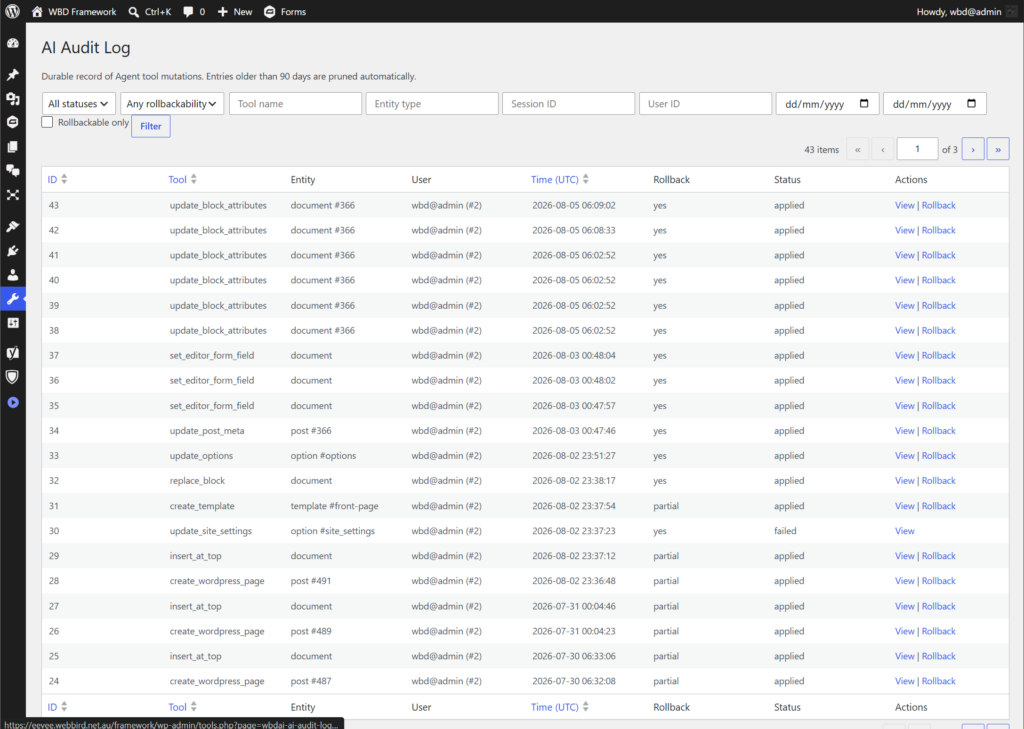
AI Audit Log: safety, snapshots, and rollback
WingMind AI records every AI-driven mutation in a durable AI Audit Log so administrators can inspect what changed, when, and by whom — and launch a guided rollback when needed. This sits alongside live safety controls that try to prevent unwanted changes in the first place.
Complete Accountability & Peace of Mind
Every time WingMind AI changes your site, it leaves a paper trail. The AI Audit Log captures who made the change, what tool ran, and before-and-after snapshots of the affected content — with credentials stripped out and entries kept for 90 days. Destructive actions require your explicit approval before they execute, and Ask Mode lets you inspect freely with zero write access. When something needs reversing, open the log, review the snapshots, and launch a one-click Rollback with Agent that restores the prior state and marks the entry complete.
How the safety layers fit together
WingMind AI uses a multi-layered defense model to ensure complete control and site safety from prompt to execution:
- Agent modes: Ask Mode blocks all site writes; Agent and Site Editor modes allow authorized changes.
- Destructive confirmation: Prompts you to explicitly approve high-impact actions before they execute.
- Capability checks: Native WordPress permissions are enforced on every server tool.
- AI Audit Log: Creates a durable before-and-after snapshot of every modification.
Note: Read-only operations (such as inspecting posts or listing users) are never logged — only actions that modify your site.
Safety tools (prevention)
1. Ask Mode — write protection
In Ask Mode, write tools are removed from the model’s tool list and blocked at execution time. The agent can inspect the site but cannot change anything. This is the safest mode for exploration and Q&A.
2. Destructive action confirmation
Before high-impact tools run, WingMind AI shows a Confirm destructive action modal with the tool name and arguments. If you cancel, the tool does not run and nothing is logged as applied.
Examples of actions that require confirmation:
- Deleting posts, terms, media, users, menus, templates, plugins
- Switching themes, updating global styles, changing site settings
- Installing or activating plugins
- Creating users, restoring revisions
- Most WooCommerce and Gravity Forms delete operations
Some tools use status-gated confirmation — for example, delete_post only prompts when the post is published or scheduled, not when it’s already a draft.
3. In-turn Undo (block editor sidebar only)
While using the block editor sidebar, WingMind AI records reversible steps during each agent turn. An Undo button appears after edits, letting you revert all document changes from that turn immediately — without opening the audit log.
This is a fast, local safety net. The fullscreen agent does not offer the same in-turn undo; it relies on the durable audit log and rollback flow instead.
Snapshot tracking (what gets recorded)
Every site modification creates a record in the audit log, storing essential details like who made the change, what was modified, sanitized arguments, and full before-and-after state snapshots.
What snapshots contain
- Posts, Pages & other content: Title, content, publication status, slug, excerpt, and key meta (templates, thumbnails, SEO descriptions).
- Categories & Tags: Term names, taxonomy types, slugs, descriptions, and hierarchy.
- Users & Roles: Profile updates, display names, and assigned user roles (passwords and sensitive data are excluded).
- Site Settings & Styles: Global configuration updates, navigation menus, and theme stylesheet references.
- Block Editor Modifications: Serialized block markup, client IDs, and content deltas.
Rollbackability ratings
- Full Rollback (Yes): Complete before-and-after snapshots stored. WingMind AI can restore the exact prior state (e.g. updates to posts, terms, site settings, theme activation).
- Partial Rollback: Reversible with specific caveats (e.g. creations are rolled back by deleting the new item; deleted items are restored from trash).
- Manual Reversal Required: Rare structural changes that require guided manual restoration steps.
Retention & Limits: Audit records are stored for 90 days before automatic cleanup. Passwords and API secrets are automatically redacted from stored arguments to safeguard credentials.
Inspecting changes (read-only audit review)
Location: WordPress admin → Tools → AI Audit Log
Access: Administrators only (manage_options)
List view
Browse all recorded mutations with columns for ID, tool, entity, user, timestamp (UTC), rollbackability, and status.
Filters available:
• Tool name, entity type, session ID, user ID
• Status (applied, rolled_back, failed)
• Rollbackability (yes, partial, no)
• Date range
• Rollbackable only checkbox (applied + yes/partial)
Detail view
Click any entry to see:
• Full metadata (tool, entity, user, session link, timestamps)
• Sanitized Args
• Side-by-side Before and After JSON snapshots
• Rollbackability rating and note
• Whether the snapshot was truncated
• Whether the change was client-side (block editor) or server-side (REST)
This is a read-only inspection surface — viewing the log never changes the site.
Undoing changes (rollback)
There are two distinct undo paths depending on where and when you need to revert changes:
1. Immediate Undo — block editor sidebar
- Available during the same agent turn in the block editor sidebar
- Reverts all document tool steps from that turn in reverse order
- Does not require the audit log
- Best for: “Wait, undo what you just did on this page”
2. Audit Log rollback — fullscreen agent
For changes recorded in the audit log (including earlier sessions):
- Open Tools → AI Audit Log and find the entry
- Click Rollback with Agent (available when status is
appliedand rollbackability isyesorpartial) - WingMind AI opens in Site Editor Mode and auto-starts a rollback turn with the full before/after snapshots and sanitized args embedded in the prompt
- The agent reverses the change using the appropriate tools
- When complete, it sets the entry’s status to
rolled_back
Important rollback caveats:
• Deletes have no before snapshot — rollback means restoring from trash, not reconstructing deleted content
• Creates are rolled back by removing the newly created entity
• Plugin/theme installs may require manual reversal (reinstall prior version, deactivate, etc.)
• Partial entries include a note explaining what the agent can and cannot safely restore
• Rollback runs without asking for confirmation again — it’s treated as an intentional admin action
• Failed tool calls are logged with statusfailedbut are not rollbackable
What is NOT in the audit log
- Read-only inquiries: Searching or inspecting posts, listing users, or retrieving settings does not alter site state and is not logged.
- Blocked or cancelled actions: Actions prevented by Ask Mode or cancelled in confirmation popups are never executed.
- Chat conversations: General AI conversation history is saved separately in chat sessions, keeping the audit log focused strictly on site mutations.
Quick Selection Guide
- To explore your site without risk: Use Ask Mode.
- To approve or block dangerous actions: Use the Destructive Confirmation Modal.
- To quickly undo recent edits on the current page: Use Sidebar Undo in the block editor.
- To review past changes and history: Go to Tools → AI Audit Log.
- To restore a previous state automatically: Use Rollback with Agent from the audit detail view.